Microsoft Fabric Governance, Part 5: Understanding Data Flows with Workspace Lineage
When a report shows an unexpected result, the problem may sit upstream. Part 5 shows how workspace lineage helps maintainers trace dependencies and check that the implemented flow matches the approved design.
Key takeaways
- Workspace lineage shows items, their connections and upstream dependencies one level back. Use impact analysis for downstream items in other workspaces.
- Use it to check that the implemented flow matches the approved design, especially in release reviews.
- A missing line isn’t proof that no dependency exists. Investigate before drawing conclusions.
When a financial report displays an unexpected result, the problem may sit upstream — in its semantic model, prepared data or source connection.
Workspace lineage helps maintainers trace those relationships and compare the implemented solution with the intended design.
What the view shows
Fabric’s lineage view displays workspace items and their connections, including external upstream dependencies one level back. Every workspace has a lineage view.
Two boundaries matter:
- Any user with a workspace role can open the view, but Viewers cannot see data sources.
- Downstream items in other workspaces are not shown. Use an item’s impact analysis to investigate those dependencies.
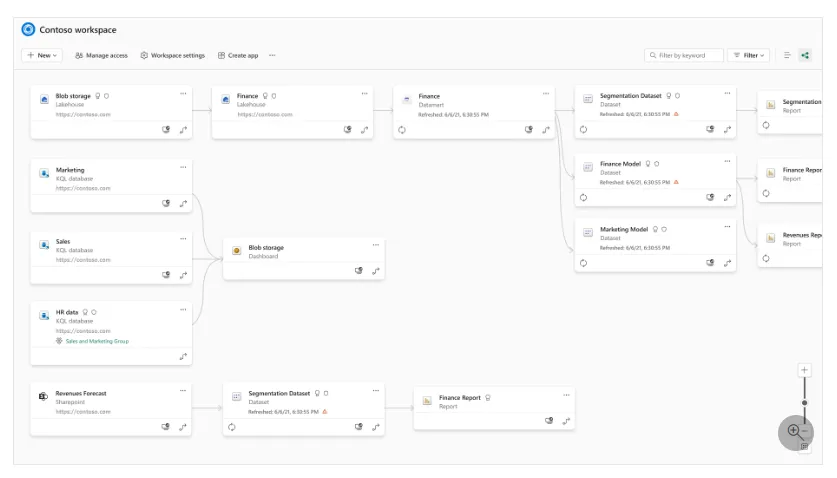
Figure 1. Workspace lineage showing connected items and external upstream references. Image: Microsoft Learn.
Check the finance scenario
Our intended dependency chain is:
Finance_Curated lakehouse → Finance_Performance semantic model → Finance_Management report
This is the logical design, not a guarantee of what the workspace graph will display. The visible connections depend on the implementation and supported lineage capture.
Suppose Finance_Management still references an older semantic model. That dependency needs investigation before the team retires the old model — even if the report appears to work correctly.
The governance question is straightforward: does the implemented flow match the approved design?
A practical walkthrough
- Open the Finance workspace and select Lineage from the workspace toolbar.
- Locate the lakehouse, semantic model and report.
- Select the lineage arrow at the bottom-right of an item’s card to highlight its related items.
- Check the upstream connections and any external workspace names.
- Record unexpected dependencies for investigation.
Use meaningful item names. A graph of similarly named models is difficult to review, even when its connections are technically correct.
Make lineage part of release review
For a Finance release, use a short set of checks:
| Review question | What it helps identify |
|---|---|
| Does the report use the intended model? | References to obsolete calculations |
| Does the model use the approved data item? | Departures from the agreed architecture |
| Are development dependencies present in production? | Environment separation problems |
| Are external dependencies and their owners known? | Coordination needs during changes or incidents |
These are suggested operational checks — not automatic validations performed by Fabric. A visible connection establishes a dependency; it does not prove that the calculations or transformations are correct.
Investigate missing links
A missing line is not proof that no dependency exists.
Microsoft documents a specific limitation for semantic models connected to dataflows: correct lineage display is guaranteed when the connection is created through Get Data using the Dataflows connector. It is not guaranteed for manually constructed Mashup queries.
When an expected connection is absent, inspect the underlying configuration before drawing conclusions. For notebook-driven transformations, retain supporting code, tests and documentation rather than expecting an item-level graph to explain every calculation.
Workspace lineage is most useful as a repeatable review habit: inspect the flow, investigate surprises and keep the architecture record aligned with the implementation.
Documentation reviewed on 20 October 2026. The screenshot uses some earlier product terminology, such as “Dataset” for semantic model; confirm current interface wording and lineage support in your environment.