Microsoft Fabric Governance, Part 4: Classifying Information with Sensitivity Labels
A report can be accurate, useful and highly sensitive. Part 4 explains how Purview sensitivity labels classify Fabric content, where their protection applies, and what to test before relying on them.
Key takeaways
- A label is a classification; its protection depends on the associated Purview policies and the scenario, not the label name.
- Downstream inheritance helps, but verify it item by item. Power BI to non-Power BI Fabric items isn’t supported.
- Test access, inheritance and export paths before relying on a label.
A report can be accurate, useful and highly sensitive.
Finance content may contain unpublished results, supplier bank details or commercially sensitive forecasts. Endorsement helps users identify recommended content; sensitivity labels communicate how that information should be classified and handled.
Fabric uses labels and policies from Microsoft Purview Information Protection to support this approach.
Classification is not the same as protection
Labels such as Internal or Confidential represent classifications defined by your organisation. Their protection depends on the associated policies and the scenario — not the label name alone.
Microsoft distinguishes three supported access-control scenarios:
| Scenario | What protection depends on |
|---|---|
| Access within the Fabric tenant where the label was applied | An associated Purview protection policy |
| Opening a labelled Power BI Desktop file | The label’s protection settings, associated through Purview publishing policies, and the user’s rights |
| Opening a file produced through a supported export path | The label’s protection settings, associated through Purview publishing policies, and the user’s rights |
These controls do not cover every copy, integration or export, including cross-tenant scenarios such as external data sharing. Assess labels alongside item permissions, policy configuration and the routes through which data leaves Fabric.
Prepare before applying labels
Confirm with your administrators that:
- The required labels are defined in Purview and published to the intended users.
- Sensitivity labelling is enabled for the applicable Fabric users.
- Users have the required licences and item permissions.
- Each label has a clear business definition and handling requirements.
Microsoft’s application guide lists edit permission and a Power BI Pro or Premium Per User licence as prerequisites. The broader information-protection guidance also requires appropriate Purview licensing; confirm the requirements for your users and scenario.
Apply a label to Finance_Curated
Suppose Finance_Curated contains unpublished financial results. The data owner determines that the organisation’s Confidential label is appropriate.
To apply it:
- Open the lakehouse.
- Select the sensitivity indication in the item header.
- Choose the appropriate published label.
- Complete any confirmation shown and verify the resulting label.
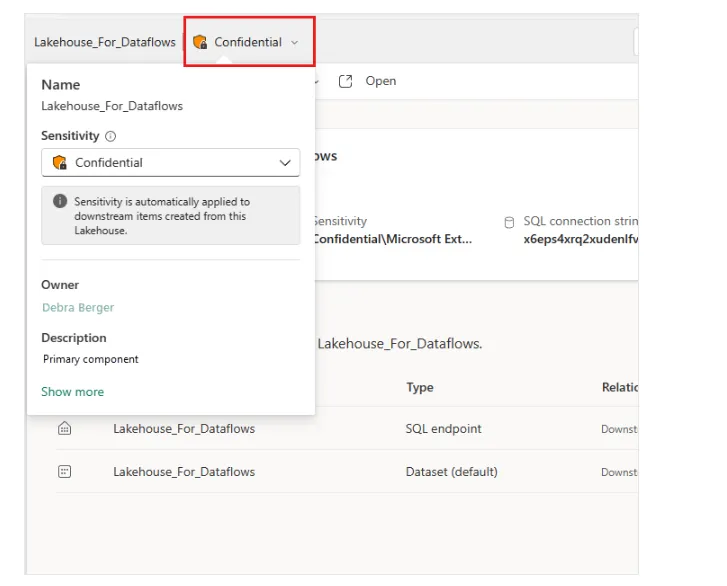
Figure 1. Applying a sensitivity label through an item’s header. Image: Microsoft Learn.
Labels can also be applied through an item’s Settings, where that experience exposes a sensitivity section. If a label is unavailable or disabled, check whether it has been published to you and whether you have the required permissions.
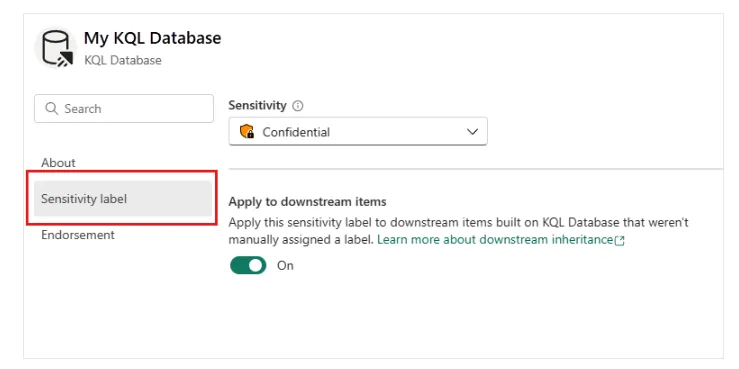
Figure 2. Selecting a label in item settings and viewing the downstream application option. Image: Microsoft Learn.
The screenshots illustrate the interaction; their item names and interface wording may differ from your environment.
Verify downstream classification
After labelling Finance_Curated, inspect Finance_Performance and Finance_Management separately.
Fabric supports downstream inheritance, but not every relationship behaves identically. Microsoft documents support from Fabric items to other Fabric items and Power BI items, and between Power BI items. Propagation from Power BI items to non-Power BI Fabric items is not supported. Other inheritance conditions and exceptions also apply.
Treat inheritance as a capability to verify — not proof that every dependency now carries the intended classification.
Test the handling rules
Before relying on the label, test:
- Can intended users access the content?
- Are unauthorised users restricted by the configured controls?
- Do downstream items have the expected labels?
- What happens when users export or download the information?
Supported Power BI export paths include Excel, PDF, PowerPoint and Power BI Desktop files, subject to their documented requirements. CSV and text exports are outside the documented label-based access-control support. Non-Power BI Fabric exports do not currently transfer labels to exported output.
Do not automatically choose the most restrictive label. Choose the classification that matches the information and organisational policy, then verify that the controls support its intended handling.
For Finance, success is not simply “Confidential” appearing beside an item name. It is a classification users understand, backed by controls the team has tested.
Documentation reviewed on 20 October 2026. Confirm current licensing, policy support, inheritance behaviour and export limitations before implementation.