Microsoft Fabric Governance, Part 3: Making Content Discoverable with Tags
An item name rarely tells the whole story. Part 3 shows how administrator-defined Fabric tags add searchable business context — and why a small, owned vocabulary works best.
Key takeaways
- Tags add searchable business context without overloading item names.
- Keep the vocabulary small, defined and owned, and apply tags for actual purpose, not every possible use.
- Tags describe; they don’t certify, classify or restrict access.
An item name rarely tells the whole story.
Finance_Performance might support management reporting, budgeting or regulatory submissions. Adding every purpose to its name would make it cumbersome to maintain.
Fabric tags provide searchable context without overloading item names. They help users find relevant content across workspaces and OneLake catalog.
What tags do
Tags are administrator-defined text labels applied to Fabric items and workspaces. Their availability depends on where administrators define them:
- Tenant-level tags are available across the tenant.
- Domain-level tags are available to items and workspaces assigned to that domain.
- Workspaces without a domain assignment can use tenant-level tags only.
Permissions and limits differ by target:
| Target | Permission needed to apply or remove tags | Maximum tags |
|---|---|---|
| Item | Write or Contributor permissions | 10 |
| Workspace | Workspace administrator | 10 |
Workspace and item limits are counted independently. Other workspace roles can view workspace tags but cannot modify them.
Design a small, useful vocabulary
For our Finance scenario, start with a few clearly defined business terms:
| Tag | Intended meaning |
|---|---|
| Finance | Supports finance-related activity |
| Management Reporting | Supports internal performance reporting |
| Budgeting | Supports budget preparation or comparison |
| Regulatory Reporting | Supports a defined regulatory reporting process |
Finance_Performance might receive Finance and Management Reporting. A budget preparation item could receive Finance and Budgeting.
Apply tags according to actual purpose — not every possible future use. Avoid interchangeable terms such as Finance, Financial and Finance Data unless they represent genuinely different categories.
Apply tags to an item
First, confirm that the required tags exist at the appropriate tenant or domain level.
- Open the item’s Settings and select Tags.
- Choose the relevant labels from Select tags to apply.
- Close the settings pane. For Power BI items, select Save or Apply.
- Check the tags in the item’s OneLake catalog details.
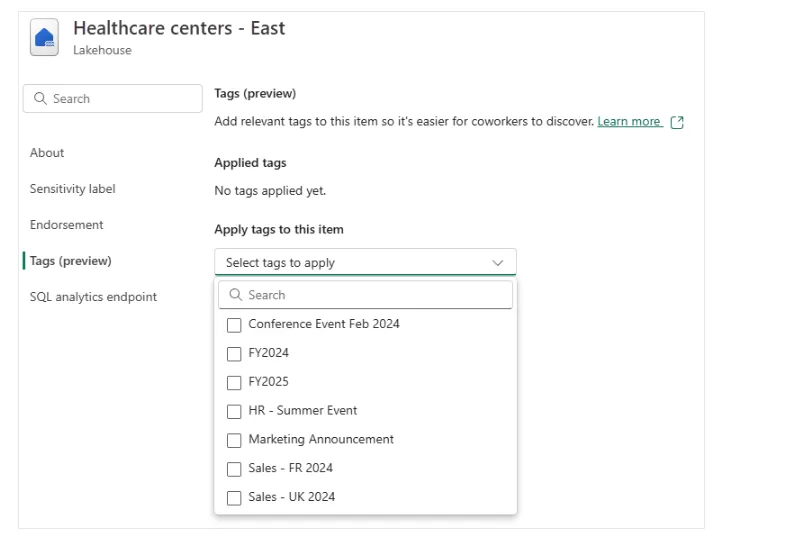
Figure 1. Selecting administrator-defined tags for an item. Image: Microsoft Learn.
If the selector is disabled, check your permissions. If an expected tag is missing, contact the tenant or domain administrator.
Workspace administrators can follow a similar process under Workspace settings → Tags.
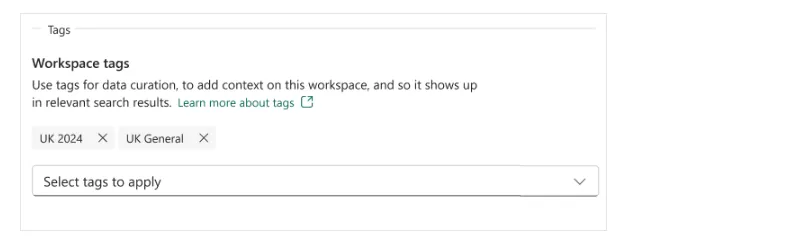
Figure 2. Applying tags at workspace level. Image: Microsoft Learn.
Do not assume a tag has failed because it is not immediately searchable. Microsoft notes that item tag icons and global search results can take several hours to update.
Test whether discovery improves
Ask someone unfamiliar with the workspace to complete a specific task:
“Find the semantic model used for Finance management reporting.”
Check whether the tags help them locate Finance_Performance and distinguish it from alternatives. If many loosely related items appear, refine the definitions or assignments.
The goal is not to maximise tag coverage. It is to reduce the effort required to find appropriate content.
Keep tags separate from trust and classification
These capabilities answer different questions:
| Capability | Question it answers |
|---|---|
| Tags | What category or purpose describes this item? |
| Endorsement | What recommendation or trust designation has it received? |
| Sensitivity label | How is its information classified? |
A Finance tag does not mean an item is certified, and tagging alone does not restrict access. Tags provide metadata; permissions remain a separate control.
Assign responsibility for the vocabulary and periodically review duplicates, obsolete terms and inconsistent assignments. Stable business categories usually outlast project names; temporary tags need an agreed review or retirement process.
Documentation reviewed on 20 October 2026. Screenshots may show earlier interface wording, including “preview”; confirm current behaviour in your environment.